Archive for the ‘tips, tricks and howtos’ Category

logrotate weirdness in debian etch

Sunday, October 18th, 2009

I have two VPSs, both running debian. One runs lenny, the other runs etch. The older etch install runs fine, and is much as the supplier delivered it. Until now I have not had cause to consider the need to upgrade the etch install to lenny because it “just worked”. But today I noticed for the first time a very odd difference between the two machines. A difference which had me scratching my head, and reading too many man entries, for some long time before I found the answer.

For reasons I don’t need to go into, I log all policy drops in my iptables config to a file called “/var/log/firewall”. This file is (supposedly) rotated weekly. The logrotate and cron entries on both machines are identical.. The entry in “/etc/logrotate.d/firewall” looks like this:

/var/log/firewall {
rotate 6
weekly
mail logger@baldric.net
compress
missingok
notifempty
}

The (standard) file “/etc/logrotate.conf” simply calls the firewall logrotate file out of the included directory “/etc/logrotate.d”. The “/etc/cron.daily/logrotate” file (which calls the logrotate script) is also standard and simply says:

#!/bin/sh

test -x /usr/sbin/logrotate || exit 0
/usr/sbin/logrotate /etc/logrotate.conf

and the (again standard) crontab file says:

# /etc/crontab: system-wide crontab
# Unlike any other crontab you don’t have to run the `crontab’
# command to install the new version when you edit this file
# and files in /etc/cron.d. These files also have username fields,
# that none of the other crontabs do.

SHELL=/bin/sh
PATH=/usr/local/sbin:/usr/local/bin:/sbin:/bin:/usr/sbin:/usr/bin

# m h dom mon dow user command
54 * * * * root cd / && run-parts –report /etc/cron.hourly
55 4 * * * root test -x /usr/sbin/anacron || ( cd / && run-parts –report /etc/cron.daily )
36 5 * * 7 root test -x /usr/sbin/anacron || ( cd / && run-parts –report /etc/cron.weekly )
3 3 5 * * root test -x /usr/sbin/anacron || ( cd / && run-parts –report /etc/cron.monthly )
#

So far so simple, and you would expect the file “/var/log.firewall” to be rotated once a week at 04.55 on a sunday morning. Wouldn’t you.

Well, on lenny, you’d be right. But on the etch machine the file was rotated daily at a time completely unrelated to the crontab entry. It turns out that there is a bug in the way etch handles logrotation because syslog doesn’t use logrotate and overrides the logrotatiion entries run out of cron. I found this after much searching (and swearing).

See the bug report at bugs.debian.org and this entry which pointed me there.

I love standards.

debian on a DNS-313

Saturday, October 3rd, 2009

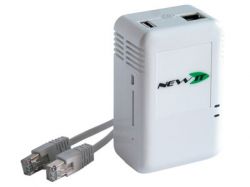
I bought another new toy last week – a D-Link DNS 313 NAS.

D-Link DNS-313

D-Link DNS-313

Actually, this was a mistake because what I really wanted was the DNS-323. I just wasn’t careful enough at the time. Quite apart from having space for two 3.5″ SATA hard drives instead of just one, the 323 is a very different beast to its smaller (and much cheaper) sibling.

Martin Michlmayr has a nice guide to installing debian on a 323. Given that the 323 has a faster processor and more RAM than a slug and it can take two internal SATA disks rather than just the external USBs it looks like an attractive option for a new debian based server. Pity then that I bought the wrong one. My excuse is that I thought the only difference was in the disk capacity and I was prepared to settle for just 1TB of store. The (normally reliable) owner of the shop where I bought the beast was also adamant that the disk capacity was the only difference between the two devices. I should have known better than to succumb to what was essentially an impulse buy when I wasn’t really intending to buy a new NAS at the time (I was in the shop for something else and picked up the 313 because I recalled reading Martin’s pages recently).

Once I got the 313 home of course and checked the specs it looked as if I would be stuck with the D-Link supplied OS. However, a bit of searching turned up the DSM-G600, DNS-323 and TS-I300 Hack Forum which has a series of articles on installing debian on a 313 (despite the forum title). A forum contributor called “CharminBaer” has put together a nice tarball of debian lenny which allows the user to replace the D-Link OS without actually reflashing the device. This means that the original bootloader is retained but the device boots into the replacement system on disk. The nicest part of this installation method is that there is almost no risk of bricking the device because the installation simply entails copying the tarball onto the disk over a USB connection, extracting the files and then booting into a shiny new Lenny install. Result.

The tarball can be found here, and the installation instructions are here.

Many thanks to “CharminBaer”.

wordpress on lighttpd

Saturday, September 12th, 2009

I have commented in the past how I prefer lighttpd to apache, particularly on low powered machines such as the slug. I used to be a big apache fan, in fact I think I first used it at version 1.3.0 or maybe 1.3.1, having migrated from NCSA 1.5.1 (and before that Cern 3.0) back in the day when I ran web servers for a living. However, those days are long gone and my web server requirements are now limited to my home network and VPSs so I don’t need, nor do I want, the power of an industrial strength apache installation. In fact, my primary home web server platform (the slugs) struggles with a standard apache install. Lighttpd works very well on machines which are low on memory.

Having got used to lighttpd, it seemed a natural platform to use on my VPSs. And it performs very well on those machines for the kind of traffic I see. Moving trivia to my bytemark VPS meant that I had to take care of some minor configuration issues myself – most notably the form of permalinks I use. Most of the documentation about running your own wordpress blog assumes that you will be using apache (since that is the most popular web server software provided by shell account providers). For those of you who, like me, want to use lighttp instead, the configuration details from my vhosts config file are below. Lighttpd is remarkably easy to configure for both virtual hosting in general, and for wordpress in particular. Note that I also choose to restrict access to wp-admin to my home IP address, this helps to keep the bad guys out.

Extract of “conf-enabled/10-simple-vhost.conf” file:

# redirect www. to domain (assumes that “mod_redirect” is set in server.modules in lighttpd.conf)

$HTTP["host"] =~ “www.baldric.net” {
url.redirect = ( “.*” => “http://baldric.net”)
}

#
# config for the blog
#
$HTTP["host"] == “baldric.net” {
# turn off dir listing (you can do this globally of course, but I choose not to.)
server.dir-listing = “disable”
#
# do the rewrite for permalinks (it really is that simple)
#
server.error-handler-404 = “/index.php”
#
# reserve accesss to wp-admin directory and wp-login to our ip address
#
$HTTP["remoteip"] !~ “123.123.123.123″ {
$HTTP["url"] =~ “^/wp-admin/” {
url.access-deny =(“”)
}
$HTTP["url"] =~ “^/wp-login.php” {
url.access-deny =(“”)
}
}

}

# end

Enjoy.

aspire one bios updates

Sunday, July 5th, 2009

This post is partly for my own benefit. It records some of the most useful references to bios updates for the AAO. My own AAO is actually running a fairly early bios (3114) and deliberately so. I upgraded to 3309 in (yet another futile) attempt to get sony memory sticks to work but found that screen brightness suffered for no perceptible gain in any other functionality. So I reverted. That aside, the references here may be useful to others.

Firstly, there is considerable discussion of the relative merits of various bios versions on the Aspire One User Forum. That site also has a lot of other useful (and sometimes not so useful) discussion points. Broadly, though, I have found that forum a good starting point for searching for AAO related information.

Next up is the very useful blog site run by Macles. Macles gave a very good set of instructions on flashing the bios in this post, which has been added to. and improved with the addition of lots of step by step pictures, by “flung” at netbooktech in this posting. Note however that the link to the acerpanam site supposedly hosting the bios images is broken. The images, along with many other driver downloads can currently be found by following links on the gd.panam.acer.com pages. Alternatively, I have found the images on the Acer Europe ftp site a good source (though it has yet to show the 3310 release).

No – my sony memory sticks still don’t work.

tor on a vps

Sunday, July 5th, 2009

I value my privacy – and I dislike the increasing tendency of every commercial website under the sun to attempt to track and/or profile me. Yes, I know all the arguments in favour of advertising, and well targeted advertising at that, but I get tired of the Amazon style approach which assumes that just because I once bought a book about subject X, I would also like another book about almost the same subject. I don’t much like commercial organisations profiling me (and, incidentally, I find it highly ironic that we in the UK seem to make a much bigger fuss about potential “big brother” Government than we do about commercial data aggregation, but hey).

Sure, I routinely bin cookies, block adware and irritating pop up scripts, and use all the, now almost essential, firefox privacy plugins, but even there we still have a problem. I don’t know who wrote those plugins, I just have to trust them. That worries me. Some of the best known search engines are even more scary if you think carefully about the aggregate information they have about you.

Sometimes I care about the footprint I leave, sometimes I don’t, but the point is that I should be in control of that footprint. Increasingly that is becoming difficult. Besides being tracked by sites I visit, last year’s controversy about BT’s use of phorm is also worrying. If my ISP can track everything I do, then I face another level of difficulty in protecting my fast vanishing privacy.

Besides using a locked down browser, DNS filtering which blocks adware, cutting cookies and all the other tedious precautions I now feel are necessary to make me feel comfortable, I often use anonymous proxies when I don’t want the end site to know where I came from. But even that now looks problematic. If you use a single anonymising proxy, all you are doing is shifting the knowledge about your browsing from the end site to an interrmediary. That intermediary may (indeed should) have a very strict security policy. Ideally, it should log absolutely nothing about transit traffic. But if that intermediary does log traffic data and then sells that data to a third party, you may be in an even worse position than if you had not attempted to become anonymous. Back in january of this year, Hal Roberts of Harvard University, posted a blog item about GIFC selling user data. If sites such as Dynaweb are prepared to sell user data, then the future for true anonymity looks problematic. As Doc Searle said in this blog posting,

We live in a time when personalized advertising is legitimized on the supply side. (It has no demand side, other than the media who get paid to place it.) Worse, there’s a kind of gold rush going on. Even in a crapped economy, a torrent of money is flowing into online advertising of all kinds, including the “personalized” sort. No surprise that companies in the business of fighting great evils rationalize the committing of lesser ones. I’m sure they do it it the usual way: It’s just advertsing! And it’s personalized, so it’s good for you!

No, as Searle well knows, it is not good for you.

What to do? Enter tor and privoxy.

I first used tor some years ago in its earlier incarnation as “the onion router” (hence its name) and until recently had used it only sporadically since. The main drawback of the early tor network was its speed, or lack of it. Tor gets is strength (anonymity) from the way it routes traffic.

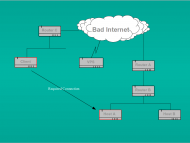
how tor works

Tor traffic passes through a series of nodes before exiting at a node which cannot be linked back to the original source. So tor performance depends on a large number of both fast intermediate relays and a large number of exit nodes. Since not all tor users are prepared to run relays, let alone an exit node (it can be bandwidth expensive and in the case of an exit node can lead to your system being mistaken for a hostile, or compromised, site) tor can be slow, at times painfully slow. But recently tor has been getting faster as more relay and exit nodes are added. It is now at a state which is probably usable most of the time, so long as you are prepared to wait a little longer than is customary for some web pages to load (and you don’t use youtube…..).

When using tor recently I have tended to follow the well trodden path of local installation alongside privoxy. Because I believe in giving something back to the community if I am gaining benefit, I also set my local configuration to run as a relay. But that caused some difficulty. If we assume that my tor usage was fairly representative of the majority of tor users out there, then the fact that my relay was only operational when my client system was up and running meant that the relay would be seen by the tor network as unstable and probably slow, Indeed, the fact that I had to throttle tor usage to the minimum to stop the network from impacting unduly on my ADSL bandwidth, meant that I was not entirely happy with the setup. So I stopped relaying. But that leaves me feeling that I am taking advantage of a free good when I could be contributing to that good.

Some while back I bought myself a VPS from Bytemark (an excellent, technically savvy, UK based hosting company) to run a couple of webs and an MTA. I use it now largely as a mail server (running postfix and dovecot) and the traffic is relatively low volume. That VPS is pretty small (though actually way better specced than some real servers I have run in the past) but I reasoned that I could easily run a tor relay on that machine and then connect to it remotely from my client system. I did, and it worked fine. But I soon found that the tor network seems to have a voracious appettite for bandwidth, Even with a fairly strict exit policy (no torrents allowed!) and some tight bandwidth shaping, I still found that I was using about 2 Gig of traffic per day (vnstat is useful here). Any more than that would start to encroach on my bandwidth allowance for my VPS and possibly impact on the main business use of that server. Monthly rates for VPSs are now less than I pay for my mobile phone contract (and arguably more useful than a phone contract too) so I decided to specialise and buy another VPS just for tor. I now run an exit node on a VPS with 384 MB of RAM and 150 Gig monthly traffic allowance. That server is currently throttled to about 2 Gig of traffic per day, but I will double that very shortly.

Now one of the nicest things about running a tor relay is the fact that your own tor usage is masked and you may get better anonymity. I therefore run privoxy on my tor relay and proxy through from my client to that proxy which in turn chains to tor internally on my relay. However, if you simply configure your local client to proxy through to your relay in clear you are allowing your ISP (and anyone else who cares to look) to see your tor requests – not smart. So I tunnel my requests to the tor relay through ssh. My local client has an ssh listener which tunnels tor requests through to the relay and connects to privoxy on port 8118 bound to localhost on the relay. I also have a separate browser on my desktop which has as its proxy the ssh listener on my client system. For a good description of how to do this see tyranix’s howto on the tor wiki site. Now whenever I want to use tor myself I simply switch browser (and that browser is particularly dumb and stripped, and has no plugins or toolbars which could leak information). Of course, should I get really paranoid, I could always run the local browser in a VM on my desktop and reload the VM after each session.

But I’m not that paranoid.

jaunty netbook remix DVD iso

Tuesday, May 12th, 2009

My daughter saw my netbook the other day and decided that she wanted UNR on her Tosh laptop to replace the 8.04 hardy I had installed for her (no-one in my family is allowed a proprietary OS – this occasionally causes some friction).

Anyway, the old Tosh she uses (which has seen various distros during its life) initially presented me with something of a challenge when she asked for UNR – it cannot boot from a USB stick. I couldn’t find an iso image of jaunty-unr so I decided to see if I could build one myself. It turned out to be quite easy. The USB stick image contains all you need to make an iso using mkisofs.

Here’s how:

- mount the USB image;
- copy the entire image structure to a new directory (call it /home/user/temp or whatever, just be sure to copy the entire structure including the hidden .disk directory);
- cd to the new directory and rename the file “syslinux/syslinux.cfg” “isolinux/isolinux.cfg”;
- rename the directory “syslinux” “isolinux”;

Now build an iso image with mkisofs thusly:

mkisofs -J -joliet-long -r -b isolinux/isolinux.bin -c isolinux/boot.cat -no-emul-boot -boot-load-size 4 -boot-info-table -o /home/user/outputdirectory/jaunty-unr.iso .

(where /home/user/outputdirectory is your chosen directory for building the new iso called jaunty-unr.iso)

Now simply burn the iso to DVD.

acer aspire one – a netbook experience

Sunday, April 12th, 2009

I mentioned in an earlier post that I had recently acquired an Acer Aspire One (AAO) netbook. I chose the AAO in preference to any other of the netbooks on the market for two reasons – firstly it looks a lot cooler than most of the competition (particularly in blue – see below), but secondly, and most importantly, the price was excellent. Apparently many people are buying the AAO with Linpus installed only to find that the machine is not compatible with Microsoft software – either that, or they are just not comfortable enough with an unfamiliar user interface to persevere. This is a shame. Linpus seems to have gained a reputation as “Fisher Price Computing” or “My First Computer”. In my view this is unfair. It does exactly what it says on the tin. The default Linpus install boots quickly, connects with both wired and wireless networks with ease and provides all that most users could want from a netbook – i.e. web browsing, email, chat and word processing.

acer aspire one

Whatever the reasons for the returns, this means that there are a fair number of perfectly good AAOs coming back to Acer. Acer in turn is punting those machines back on to the market through various resellers as “refurbished”. Whilst I may be disappointed at the lack of engagement of the buying public with a perfectly usable linux based netbook, from a purely selfish viewpoint this means that I got hold of an excellent machine at well below the original market price. My machine is the AOA 150-Ab ZG5 model. This has the 1.6 GHz N270 atom processor, 1 GB DDR2 RAM and a 120 GB fixed disk. Not so very long ago a machine with that sort of specification (processor notwithstanding) would have been priced at close to £500. I got mine for under £190 including delivery. An astounding bargain.

To be frank, I didn’t really need a netbook, but I’m a gadget freak and I couldn’t resist the added functionality offered by the AAO over my Nokia N800 internet tablet. The addition of a useable keyboard, 120 Gig of storage, and a decent screen in a package weighing just over a kilo means that I can carry the AAO in circumstances where I wouldn’t bother with a conventional laptop. And whilst the N800 is really useful for casual browsing, the screen is too small for comfort, and ironically, I stll prefer my PSP for watching movies on the move. So the N800 hasn’t had the usage I expected.

There are plenty of reviews of the AAO out there already, so I won’t add much here. This post is mainly about my experience in changing the default linux install for one I find more useful. As I said above, Linpus is perfectly usable, but the configuration built for the AAO is aimed at the casual user wth no previous linux experience. Most linux users dump Linpus and install their preferred distro. Indeed, there is a very active community out there discussing (in typical reserved fashion) the pros and cons of a wide variety of distros. It is relatively simple to “unlock” the default Linpus installation to gain access to the full functionality offered by that distribution, but Linpus is based on a (fairly old) version of Fedora and I much prefer the debian way of doing things. So for me, it was simply a choice between debian itself, or one of the ubuntu based distros.

I run debian on my servers (and slugs) but ubuntu on my desktops and laptops so ubuntu seemed to be the obvious way to go. Some quick research led me to the debian AAO wiki which gives some excellent advice which is applicable to all debian (and hence ubuntu) based installations. Whilst this wiki is typically thorough in the debian way, it does make installation look difficult and the sections on memory stick usage, audio and the touchpad are not encouraging for the faint hearted. I was particularly disappointed at the advice to blacklist the memory stick modules because I actually want to use sony memory sticks (remember my PSP….).

The best resource I found, and the one that I eventually relied upon for a couple of different installations was the ubuntu community page. This page is being actively updated and now offers probably the best set of advice for anyone wishing to install an ubuntu derivative on any of the AAO models.

So, having played with Linpus for all of about two days, I dumped it in favour of xubuntu 8.10. I chose that distro because it uses the xfce window manager which is satisfactorily lightweight and fast on small machines (and because the default theme is blue and looks really cool on a blue AAO – see my screenshot below).

aspire one xubuntu screenshot

By following the advice on the ubuntu community help page for 8.10 installs, I managed to get a reasonably fast, functional and attractive desktop which made the most of the (admittedly cramped) AAO screen layout. I had some trouble with the default ath_pci wireless module (as is documented) so I opted for the madwifi drivers which worked perfectly. The only functions I failed to get working successfully remained the sony memory sticks in the RHS card reader (SD cards worked fine) and the internal microphone.

Further searching led me to the kuki linux site which gives as its objective “a fully working, out of the box replacement for Linpus on the AAO”. I like the objective, but not the distro. However, that distro uses a kernel compiled by “sickboy” which promised to offer full functionality. I tried that kernel with my xubuntu installation (with madwifi wireless drivers) and indeed everything worked – except the sony memory sticks. So I decided to see what else I could do.

By now, I had been using the xubuntu installation for about three or four weeks. However, a fresh visit to the ubuntu community site led me to consider testing jaunty in a “netbook remix” form. I had earlier dismissed this option at intrepid (8.10) because it looked too flakey and seemed like an afterthought rather than a well considered desktop build. I was pleasantly surprised at the look of the “live” installation of the beta of jaunty-nr so decided to give that a go for real. Jaunty comes with kernel 2.6.28.11 which is pretty much up to date and I guessed that playing with that might give me the complete distro I wanted. I was also quite taken with the desktop itself which makes the most of the limited AAO screen real estate by dispensing with traditional gnome panels and virtual desktops and offering a “tabbed” application layout akin to that used in maemo on the Nokia N800. So, following the instructions on the UNR wiki, I downloaded the latest daily snapshot from the cd-image site, and made a new USB install stick. (Note that it is worth using decent branded USB sticks here, I had no problem with a 4 Gig Kingston stick, but an unbranded freebie I tried was useless both here and in my earlier installations.) My newly installed desktop looked as below.

aspire one ubuntu-nr screenshot

(Not blue, so not quite so cool, but hey.)

Note that the top panel only shows some limited information (battery and wireless connection status, time/date etc) whilst the left side of the screen shows menu options which would traditionally be given as drop down options from a toolbar and the right hand side of the screen is taken up by what would normally be called “places” (directories etc) on a standard ubuntu desktop. The centre of the screen gives the icons for the applications in the currently highlighted left side menu option. The overall effect is quite attractive and very easy to read. Selecting any application opens that application in full screen mode. Opening several applications leaves you with the latest application at the front and the others available as icons on the top panel. See my desktop below with firefox open as an example.

baldric UNR screenshot

The completed installation with the default kernel does not allow for pci hotplugging and the RHS card reader doesn’t work. This is a retrograde step, but conversely, wireless worked properly with the atheros ath5k module (not the ath_pci module) in my snapshot. Earlier snaphots included a kernel in which the acer_wmi module had to be blacklisted because it conflicted with the ath5k wireless module. The fix for the pci hotplug problem involved passing “pciehp.pciehp_force=1″ as an option to the kernel at boot time. Whilst this fixed the RHS card reader failure, I still couldn’t get the damned reader to recognise my memory sticks.

So having found a distro I really like and can probably live with long term on my AAO, I need to address the remaining problems. Given the range of problems I was facing whichever distro I chose, I decided to bite the bullet and compile my own kernel. It was clear to me that the main problems with wireless were conflicting modules so it seemed obviously better to build a kernel with only the modules required rather than include modules which only had to be blacklisted. Similarly, the requirement to pass boot time parameters to the kernel meant that pci hotplug support and related code wasn’t modularised properly. It is pretty difficult to load and unload kernel modules which don’t exist.

It is some time since I last built a linux kernel (I think it was round about 1999 or 2000 on a redhat box) so I had to spend a fun few hours getting reacquainted with the necessary tools. Unfortunately there is a lot of old and conflicting advice around on the net about how best to do this nowadays – certainly the old “make”, “make_modules install”, “make install” routine doesn’t work these days. And mkinitrd seems long gone….. Unusually, the debian wiki site wasn’t as helpful as I expected but the ubuntu community came good again and the kernel compile advice is pretty good and reasonably up to date. Even here though, there are a couple of mistakes which gave me cause to stop and think. So, as an aide-memoire (largely for myself) I documented the steps I followed to get a kernel build for .deb installation images.

For my kernel build I took the latest available stable kernel from kernel.org (2.6.29.1) and used as a starting point the kernel config from jaunty-nr (i.e. the config for 2.6.28-11 as shipped by canonical). The standard ubuntu kernel is highly generic (and as I have found, hugely and unnecessarily bloated with unused options, debug code and unnecessary modules. I may now rebuild the kernels on my standard desktops too.) To some extent this bloat is inevitable in a kernel which is aimed at a wide range of target architectures. Canonical have also done an excellent job of ensuring that practically any kernel module you could ask for is available should you plug in that weird USB device or install a PCI card giving some obscure capability that only 5% of users will ever need. But I want a kernel which works for a particular piece of hardware, and works well on that hardware. In particular I want my sony memory sticks to be available!

In configuring my kernel I took out all the obviously unnecessary code – stuff like support for specific hardware not in the AAO (AMD or VIA chips, parallel ports, Dell and Toshiba laptops etc. etc), old and unnecessary networking code (apple, decnet, IPX etc. etc) or network devices (token ring (!) ISDN etc. etc.) sheesh there is some cruft in there. More importantly I made sure that I built pci hotplug as a module (pciehp) and that the memory stick modules (mspro_block, jmb38x_ms and memstick) were built correctly. I also checked my config against sickboy’s (to whom I am indebted for some pointers when I was unsure of what to leave out). Sickboy has been quite brutal in excluding support for some devices I feel might be useful (largely in attached USB systems) so we differ. I feel that my kernel is still too large and could do with some pruning. But I’ve been conservative where I’m not sure of the impact of stripping out code.

My kernel now works and supports all the hardware in the AAO (well, my AAO as specified above). The only modifications required to get pci hotplug working are:

- add “pciehp” (without the quotes) to the end of /etc/modules to get the module to load.

- create a new file in /etc/modprobe.d (I called mine acer-aspire.conf) to include the line “options pciehp pciehp_force=1″ (again without the quotes).

This means that both card readers work and are hot pluggable as are all the USB ports. Wireless works fine, and it restarts after hibernate/suspend. Audio and the webcam also both work fine (though the internal microphone is still crackly, I get better results from the external mike) . In general I’m fairly happy with the kernel build. I have posted copies of the .deb kernel image and headers here along with my config if anyone wants to try it out. I’d be grateful for any and all feedback on how it works with various other AAO configs. You can email about this at “aao[at]baldric.net“. I think the kernel should work on any AAO running debian lenny or an ubuntu distro of 8.04 or later vintage (but obviously I haven’t tested that fully). Potential users should note that both my kernel and sickboy’s omit support for IPV6 amongst other things. If you find you have a particular problem (say a missing kernel module when you plug in a USB gadget), please check the config file first. It is almost certain that I will have omitted module support for your okey-cokey 2000 USB widget.

To install the downloaded kernel package, either open it with the gdebi package installer or, from the command line, type:

dpkg -i /path/to/dowlnload/linux-image-2.6.29.1-baldric-0.7_2.6.29.1-baldric-0.7-10.00.Custom_i386.deb

(where /path/to/download/ obviously is the path to the directory containing the kernel package).

The package installer will modify your /boot/grub/menu.lst appropriately to allow you to select the new kernel. By default, your machine will boot into the new kernel so you may wish to modify the grub menu to allow you to choose which kernel to boot. I suggest you ensure that “##hiddenmenu” is actually commented out and that you set timeout to a minimum of 3 seconds to give you a chance to choose the appropriate kernel.

I have made every effort to ensure that the kernel works as described, but as always, caveat emptor. If it breaks, you get to keep the pieces. So you really need to enure that you can boot back into a known good kernel before you boot into mine.

Enjoy.

I would be particularly grateful to hear from anyone who has managed to get sony memory sticks to work. Despite everything I have tried (all the modules load correctly) the bloody things still don’t work on my machine.

egroupware mail with dovecot and postfix

Saturday, December 27th, 2008

I have recently built an egroupware system to be used as a social networking site. The application suite itself is relatively easy to install and configure, but the webmail system it offers (a fork of squirrelmail called felamimail) is rather poorly documented. It took me some time to figure out how to authenticate mail users in IMAP against the egroupware (mysql) database – largely because the documentation doesn’t go into details about the database structure, but also because it doesn’t give any help with choosing or configuring an IMAP server to go with it.

Hence this post. I have documented how I configured the necessary components here.

Enjoy.

webanalytics? just say no.

Friday, September 12th, 2008

I have just built myself a new intel core 2 duo based machine to replace one of my older machines which was beginning to struggle under the load of video transcoding I was placing upon it. The new machine is based on an E8400 and is nice and shiny and fast. Because it is a new build, I decided to install the OS and all my preferred applications, tools and utilities from scratch. Yes, I could have just copied my old setup, or at the least, my home directory and system configuration from my older machine, but I chose to do a completely new clean build on top of a clean install of ubuntu 8.04. I did this largely because my older system has been upgraded and “tweaked” so often I am no longer sure exactly what is on there or why. I am sure that it contains a lot of unnecessary cruft and I felt it was time for a clear out. A new build should ensure that I only installed what I actually needed. Of course I copied over my mail, bookmarks and other personal data, but the applications themselves I simply installed from new and then configured to my preferred standard.

Like most modern linux distros, Ubuntu is pretty secure straight out of the box. Gone are the (good old, bad old) days when umpteen unnecessary services were fired up by init or run out of inetd by default. But old habits die hard and I still like to check things over and stop/remove stuff I don’t want, or don’t trust. I also like to check outbound connections because a lot of programs these days have a habit of “calling home” – a habit I dislike. I noticed and cleared up one or two oddities I’d forgotten about (Ubuntu uses ntpdate to call a canonical server if ntpd is not configured for example. Since I use my own internal ntp server, this was easy to sort). However, after clearing, or identifying all other connections I was left with one outbound http connection I didn’t recognise, and worse, it was to a network I know to be untrustworthy. The connection was to 66.235.133.2. This machine is on the omniture network. Omniture is notorious for running the deeply suspicious 2o7.net. Omniture market webanalytics services and are used by a whole range of (perfectly respectable) companies who pay them for web usage statistics. But omniture have never successfully explained why they choose to use a domain name which looks like, but isn’t, a local RFC 1918 address from the 16 bit block (e.g. 192.168.112.207). I don’t trust them, and I didn’t like the fact that my shiny new machine was connecting to them. So what was responsible? And what to do?

Well, the “what to do” bit is easy – just blackhole the whole 66.235.128.0 – 66.235.159.255 network at my firewall. But that feels a bit OTT, even for me. A bit of thought, and a bit of digging gave me a better solution, and one which incidentally solves a range of related problems. What I actually needed was a way of preventing oubound connections to any hosts I don’t like or don’t trust. So long as the IP addresses of the hosts are not hard coded in the application (as sometimes happens in trojans) the classic way to do this is to simply map the hostname to the local loopback address in your hosts file. But this can become tedious. Fortunately, it turns out that a guy called Dan Pollock maintains a pretty comprehensive hosts file on-line at someonewhocares.org. Result.

Because I run my own local DNS server (DNSmasq on one of the slugs) it was easy for me to add Dan’s host file to my central hosts file. So now all my machines will routinely bin any attempted outbound connection to adservers, porn sites, or whatever in the list. The downside, of course, is that this is a bit of blunt instrument and may cause some difficulty with some sites (ebay for example). But I’m prepared to put up with that whilst I fine tune the list. I can also pull the list regularly and automatically via cron so that I stay up to date (but of course I won’t just blindly update my DNS, I’ll pull the file in for inspection and manual substitution…..).

So what was making the connection? Well it looks to me as if adobe is the culprit. I had installed the acroreader plugin for firefox.

Silly me. Must remember to avoid proprietary software.

(Oh, and you just have to love omniture’s guidance on how to opt-out of their aggregation and analysis. You have to install an opt-out cookie. Oh yes, indeedy, I’ll do that.)

where did my bandwidth go?

Wednesday, August 20th, 2008

Have you ever wondered what was eating your network? Would you like to be able to check exactly which application was responsible for that sudden spike in outbound traffic? NetHogs might help. This neat little utility calls itself a “small ‘net top’ tool”, and that is exactly what it is. NetHogs groups bandwidth usage by PID so you can immediately see which application is responsible and take whatever action you deem appropriate.

Recommended.

(Oh, and if you want a nice graphical representation of the connections your PC is making whilst you are using it, I recommend you install etherape. It can be a highly educational (not to say scary) experience to leave etherape running whilst you fire up your browser. You will find that your PC is making HTTP connections all over the place. Now try leaving it running whilst you are not doing anything and watch what happens.)