Archive for the ‘tips, tricks and howtos’ Category

webanalytics? just say no.

Friday, September 12th, 2008

I have just built myself a new intel core 2 duo based machine to replace one of my older machines which was beginning to struggle under the load of video transcoding I was placing upon it. The new machine is based on an E8400 and is nice and shiny and fast. Because it is a new build, I decided to install the OS and all my preferred applications, tools and utilities from scratch. Yes, I could have just copied my old setup, or at the least, my home directory and system configuration from my older machine, but I chose to do a completely new clean build on top of a clean install of ubuntu 8.04. I did this largely because my older system has been upgraded and “tweaked” so often I am no longer sure exactly what is on there or why. I am sure that it contains a lot of unnecessary cruft and I felt it was time for a clear out. A new build should ensure that I only installed what I actually needed. Of course I copied over my mail, bookmarks and other personal data, but the applications themselves I simply installed from new and then configured to my preferred standard.

Like most modern linux distros, Ubuntu is pretty secure straight out of the box. Gone are the (good old, bad old) days when umpteen unnecessary services were fired up by init or run out of inetd by default. But old habits die hard and I still like to check things over and stop/remove stuff I don’t want, or don’t trust. I also like to check outbound connections because a lot of programs these days have a habit of “calling home” – a habit I dislike. I noticed and cleared up one or two oddities I’d forgotten about (Ubuntu uses ntpdate to call a canonical server if ntpd is not configured for example. Since I use my own internal ntp server, this was easy to sort). However, after clearing, or identifying all other connections I was left with one outbound http connection I didn’t recognise, and worse, it was to a network I know to be untrustworthy. The connection was to 66.235.133.2. This machine is on the omniture network. Omniture is notorious for running the deeply suspicious 2o7.net. Omniture market webanalytics services and are used by a whole range of (perfectly respectable) companies who pay them for web usage statistics. But omniture have never successfully explained why they choose to use a domain name which looks like, but isn’t, a local RFC 1918 address from the 16 bit block (e.g. 192.168.112.207). I don’t trust them, and I didn’t like the fact that my shiny new machine was connecting to them. So what was responsible? And what to do?

Well, the “what to do” bit is easy – just blackhole the whole 66.235.128.0 – 66.235.159.255 network at my firewall. But that feels a bit OTT, even for me. A bit of thought, and a bit of digging gave me a better solution, and one which incidentally solves a range of related problems. What I actually needed was a way of preventing oubound connections to any hosts I don’t like or don’t trust. So long as the IP addresses of the hosts are not hard coded in the application (as sometimes happens in trojans) the classic way to do this is to simply map the hostname to the local loopback address in your hosts file. But this can become tedious. Fortunately, it turns out that a guy called Dan Pollock maintains a pretty comprehensive hosts file on-line at someonewhocares.org. Result.

Because I run my own local DNS server (DNSmasq on one of the slugs) it was easy for me to add Dan’s host file to my central hosts file. So now all my machines will routinely bin any attempted outbound connection to adservers, porn sites, or whatever in the list. The downside, of course, is that this is a bit of blunt instrument and may cause some difficulty with some sites (ebay for example). But I’m prepared to put up with that whilst I fine tune the list. I can also pull the list regularly and automatically via cron so that I stay up to date (but of course I won’t just blindly update my DNS, I’ll pull the file in for inspection and manual substitution…..).

So what was making the connection? Well it looks to me as if adobe is the culprit. I had installed the acroreader plugin for firefox.

Silly me. Must remember to avoid proprietary software.

(Oh, and you just have to love omniture’s guidance on how to opt-out of their aggregation and analysis. You have to install an opt-out cookie. Oh yes, indeedy, I’ll do that.)

where did my bandwidth go?

Wednesday, August 20th, 2008

Have you ever wondered what was eating your network? Would you like to be able to check exactly which application was responsible for that sudden spike in outbound traffic? NetHogs might help. This neat little utility calls itself a “small ‘net top’ tool”, and that is exactly what it is. NetHogs groups bandwidth usage by PID so you can immediately see which application is responsible and take whatever action you deem appropriate.

Recommended.

(Oh, and if you want a nice graphical representation of the connections your PC is making whilst you are using it, I recommend you install etherape. It can be a highly educational (not to say scary) experience to leave etherape running whilst you fire up your browser. You will find that your PC is making HTTP connections all over the place. Now try leaving it running whilst you are not doing anything and watch what happens.)

implementing mailman and postfix with lighttpd on debian

Tuesday, July 22nd, 2008

I recently needed to set up a mailing list for a group of friends (my bike club). I had become tired of mail bounces and failures because we were all relying on an out of date list of addresses originally cobbled together by one member. That list of addresses was routinely used in “reply all” messages to others about forthcoming social events. An obvious improvement would be a mail list – ideally one which members could manage themselves. I originally looked at using a quick and dirty system using a mail forwarding mechanism which would simply explode mail sent to one address to the complete list of aliases (I can be lazy). However I discovered that neither my mail/web provider, nor my ISP really offered this facility in quite the way I wanted it. So, an obvious way forward would be do it myself using a slug.

I’ve used mailman in the past and knew it offered everything I wanted (including a web interface for membership management and access to archived messages), but I don’t (or rather didn’t) run a mail server on my home network. So that had to be fixed first. The necessary ingredients for the list management were: mailman itself; an MTA (I chose postfix because I know it, like it and find the default debian exim unnecessarily complicated); and a webserver (I was already running lighttpd on both slugs because it performs better than apache on low memory machines). I also wanted to use SSL encryption on the webserver to preserve password integrity (but not to authenticate the webserver itself).

There were a number of steps required to get this all working to my satisfaction. These were:

Step 1 – upstream SMTP authentication using TLS with postfix;
Step 2 – getting a mailman listserver running with postfix;
Step 3 – configuring lighttpd with SSL for mailman;
Step 4 – putting it all together and letting the world in.

It all worked, but the main drawback turned out to be the performance of the slug when running mailman. The combination of SSL encryption and mailman python scripts is too big a hit for a device with only 32 Mb of RAM. It would be perfectly feasible to run mailman on the slug if we limited ourselves to management by email alone (i.e. ignore the web management interface). But doing this would severely limit its functionality and in such case we might as well look at alternative list managers such as Majordomo or Listproc. In the end, the attractiveness of mailman’s web interface meant that I moved it all off the slug and onto a more powerful platform (also running debian). Nevertheless, the documentation here may be of use to anyone considering a mailman install with postfix and lighttpd on any linux distro. The notes on SSL usage at step 3 can, of course, also be applied (with suitable modification) to apache or any other webserver supporting SSL certificates.

backtrack 3 released

Friday, June 20th, 2008

Any half decent sysadmin will routinely test the security of his or her own systems. A good, and sensible, sysadmin will follow up those tests with an independent security audit by a professional company – preferably one which is a member of a recognised industry body (such as CREST). Finding the holes in your security mechanisms (and there will be some – probably more than you will be happy about) before the bad guys do is essential if you want to sleep at night (and keep your job).

There are a huge number of security testing tools available for free if you know where to look. Most sysadmins keep a toolbox of their favourites (nmap, nessus, ettercap, dsniff et al.) to hand ready for testing any new build. But it can sometimes be difficult to know just which tool to use, and where to get it. Enter backtack. I first came across this collection of tools as recently as february 2006 and found it an excellent resource. Essentially backtrack is a collection of all the security testing tools you are likely to need packaged into one linux distribution. Think of it as a knoppix for security testing. A complete list of all the tools in the collection can be seen here.

Bactktrack Version 3 has just hit the streets. Get it here.

(Oh, and don’t think that using a toolset like this makes you a pen-tester. It doesn’t. What it might do is make you more security aware, and a better sysadmin.)

ssh through http proxy

Saturday, March 1st, 2008

On a mail list I subscribe to I have recently been involved in a discussion about the restrictions sometimes placed on users of WiFi hotspots or hotel networks (to say nothing of the restrictions placed on corporate networks). Some of the suggested solutions involve tunnelling ssh connections over http(s). Other solutions assume that the network is simply restricting access with packet filters so that you may just need to connect to a non-standard port (such as 80 or 443). If this is the case, then you simply have to configure your target ssh daemon to listen on that port. However, some networks force you through a proxy, in which case you need a utility like corkscrew. I had not previously heard of this neat little utility – but it turns out to merit some exploration if you find yourself needing such a tool.

Corkscrew is relatively simple to set up, but if you have problems, take a look at Andrew Savory’s blog entry of 27 February 2008.

reflashing the BT home hub from a linux PC
Sunday, December 30th, 2007

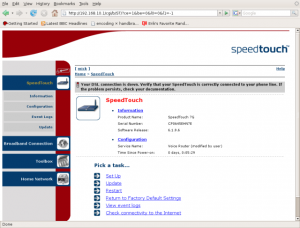
As I mentioned in an earlier post, I found several references to successful reflashes of the BT hub to a genuine Thomson 7G image on a variety of sites. None of those sites gave instructions as to how to do this if you run a linux PC.

So I have documented how I did it here.

update to ripping DVDs to a sony psp on linux

Sunday, November 25th, 2007

Since writing the entry below, I have discovered a much simpler way of ripping and transcoding DVDs – k9copy. I really should have noticed this earlier because I investigated k9copy when I was playing with dvd::rip and winFF as GUI tools for ripping. I had (stupidly) assumed that k9copy could only copy a DVD to either another DVD or to an ISO file for later burning (admittedly useful if shrinking a DVD from around 9 Gig to under 5 Gig as is commonly required). My only excuse here is that the drop down menu options offered for “ouput device” only give the names of your optical drives or “ISO image”.

However, I went back to k9copy a few days ago when I was trying to rip a particularly difficult DVD which seemed to be faulty. The disk in question would sometimes read, and at other times fail. So my thinking went along the lines of “I’ll try copying to an ISO so that I can loop mount it and then transcode”. When I opened k9copy to do so I noticed that there was an option to create an MPEG 4 file – moreover there were a bunch of preset options for MPEG 4 encoding in the “settings” menu. I tested ripping and transcoding to MPEG 4 (DIVX 4/5) in an avi container and sure enough, it worked fine and played back perfectly using Totem/Xine/VLC/Mplayer. There is no preset for PSP format, but k9copy allows you to add video and audio codec options to pass to mencode. Result!

I created new video and audio entries called “PSP” and “PSP audio” respectively and I now have a simple, all-in-one GUI for selecting, previewing, ripping and encoding to a format usable on my PSP.

I have documented this (with some screenshots) at
ripping and encoding a dvd to psp format using k9copy

I considered editing the earlier post to reflect this new discovery, but decided to leave it as is because the bash script might still be useful to someone. Certainly I use it when batch ripping several tracks (such as is common on TV series compilation disks) from a single disk. The script can be called from another script which just loops through the titles – e.g for a disk with 4 episodes of a programme called Dr Who, something like:

#!/bin/bash
#
for i in 1 2 3 4
do
./psp-encode.sh $i dr-who-$i
done

would do fine.

ripping DVDs to a sony psp on linux

Sunday, November 4th, 2007

I spend a lot of time on trains – I mean a /lot/ of time. My daily commute amounts to around 6 hours in total each day. Of that, at least 4 hours is spent sitting on a train avoiding listening to the cacophony of irritating chunterers and morons on mobiles. The worst period is first thing in the morning when silence is supposed to reign. The regulars know the rules. No chuntering. The most that should happen is a “good morning”. After that, silence. In the morning I need to sleep on the train simply to stay sane. In order to mute the noise I wear earplugs.

Coming home is different. Most people are awake and the ambient noise level is such that sleeping isn’t an option. With that level of noise I can’t concentrate properly to read so for some years I have listened to music and (latterly) watched DVDs. I find that with proper full insertion earphones I can shut out the rest of the world enough to allow me to start to relax and unwind sufficiently that I can arrive home in a mood which won’t involve me shouting at anyone. I now have a huge collection of DVDs (Christmas present? How about the complete series of the first Star Trek, The Outer Limits etc.)

But, DVDs plus laptop are bulky and heavy. For a while I tried a portable DVD player but the battery life is poor and, again it’s pretty bulky when you add a collection of DVDs. Then a colleague suggested a Sony PSP. He said that he could rip 3-4 DVDs to one 2 Gig memory stick and battery life ran to about 7 hours. Neat. I checked out my son’s PSP and found that the screen resolution was pretty good so I invested in one of my own to play with. (For some reason my son wasn’t keen on letting me have his for any length of time).

Because I use Linux, my colleague’s advice on ripping to PSP format wasn’t helpful. Google is your friend in such circumstances. I quickly discovered that Sony seem to have been awkward in the format they require for MPGE4 video on memory sticks. The PSP is also fussy about screen resolution and audio and video bitrates. I also found a lot of conflicting (and out of date) advice about where to store the movies once ripped. I guess this is largely because the memory stick file system format has changed since version 2.xx of the firmware (mine is at the latest 3.72, though I started at 3.30). In current firmware revisions (from 3.30 onwards at least) videos must simply be stored in the directory called “video” on the memory stick. The name you give to the file is the name that shows up on screen in the PSP.

The PSP manual says that the maximum supported video bit rate is 768kbps. The native screen resolution is supposedly 480 x 272 with support for 720 x 480 and 480 x 352 available for MPEG-4 AVC(H.264) video Main Profile (AVC CABAC) files since firmware v 3.30. However, I have never successfully /reliably/ converted to resolutions better than 368 x 208 and 320 x 240 using MPEG 4 video. I have had some success at higher resolutions using an h264 codec, but the transcoding process was slow and complex involving ripping from DVD to one format then transcoding again to h264. Life is too short. All my ripping is now done at 320 x 240 for the simple reason that it works consistently for any aspect ratio movie, gives good quality and the output can be resized reliably by the PSP itself (the PSP has several screen scaling modes available – original, normal, full screen and zoom). A resolution of 368 x 208 also works well, particularly for wide screen movies, but the output shows a black band at the top and bottom of the screen and it is not possible to zoom to fill.

Many of my early attempts at ripping and transcoding ended less than successfully. I’ve used transcode (www.transcoding.org/cgi-bin/transcode) in the past, together with dvd::rip (www.exit1.org/dvdrip) but I find transcode very slow and I couldn’t always get a successful conversion. So I changed to using MEncoder with ffmpeg. Most distros will have these installed as standard. If not installed, then your first port of call should be your distro repository, thereafter, try www.mplayerhq.hu for MPlayer/MEnecoder and ffmpeg.mplayerhq.hu for the codec.

The MPlayer site itself gives advice on how to rip DVD to a format usable on your PSP at:
www.mplayerhq.hu/DOCS/HTML/en/menc-feat-handheld-psp.html.

There they say:

———————————————————————-

“13.4 Encoding to Sony PSP video format

MEncoder supports encoding to Sony PSP’s video format, but, depending on the revision of the PSP software, the constraints may differ. You should be safe if you respect the following constraints:

- Bitrate: it should not exceed 1500kbps, however, past versions supported pretty much any bitrate as long as the header claimed it was not too high.

- Dimensions: the width and height of the PSP video should be multiples of 16, and the product width * height must be <= 64000. Under some circumstances, it may be possible for the PSP to play higher resolutions.

- Audio: its samplerate should be 24kHz for MPEG-4 videos, and 48kHz for H.264.

Example 13.4. encode for PSP

mencoder -ofps 30000/1001 -af lavcresample=24000 -vf harddup -of lavf -oac lavc -ovc lavc -lavcopts aglobal=1:vglobal=1:vcodec=mpeg4:acodec=aac -lavfopts format=psp input.video -o output.psp

Note that you can set the title of the video with -info name=MovieTitle."

--------------------------------------------------------------------------

Using a variant of that command line in a bash script I find that I can get a standard 2 hour movie down to around 350-550 MB with excellent resolution and audio quality. This means that I can get around 4 movies on a 2 Gig stick. Battery life runs to around 7.5 hours when running off the stick (and not using the UMD).

Note that I scale to 320x240 and specify the language as english ("alang-en") just to ensure that I don't get some other language as the audio output - german seems a popular default in my experience. You will need to ensure that your dvd device is correctly specified (mine is /dev/hda below). The track number is critical because you only want to transcode the main DVD track (usually the longest). The quickest way to discover this is to use a neat little util called lsdvd written by Chris Phillips and available from untrepid.com/acidrip/lsdvd.html. Chris has also written a really good graphical tool called AcidRip which acts as a front end to MEncoder/MPlayer. Note that I use “threads=2″ as one of the arguments to lavcopts. This is because I use a dual core processor and the ffmpeg libraries are capable of using both processors. The default is single threading.

My script is as follows:

#!/bin/bash
#
# script to encode DVD to MPEG4 video for PSP
#
# $1 = track number, $2 = title
#
mencoder dvd://$1 -dvd-device /dev/hda -alang en -oac lavc -ovc lavc -of lavf -lavcopts threads=2:aglobal=1:vglobal=1:
vcodec=mpeg4:mbd=2:trell:autoaspect:vbitrate=500:acodec=aac -af volume=10,lavcresample=24000 -vf scale=320:240,harddup -lavfopts format=psp:i_certify_that_my_video_stream_does_not_use_b_frames -o $2.mp4

# end of script

[Update note added on 6 June 2008. Since writing this post, both mencoder and ffmpeg have been updated so that the above script will not work without modification. In particular, the "i_certify...." option is no longer supported (or necessary) and the "aac" codec has been supplanted by "libfaac". So the new script should look like this:

#!/bin/bash
#
# script to encode DVD to MPEG4 video for PSP
#
# $1 = track number, $2 = title
#
mencoder dvd://$1 -dvd-device /dev/hda -alang en -oac lavc -ovc lavc -of lavf -lavcopts threads=2:aglobal=1:vglobal=1:
vcodec=mpeg4:mbd=2:trell:autoaspect:vbitrate=500:acodec=libfaac -af volume=10,lavcresample=24000 -vf scale=320:240,harddup -lavfopts format=psp -o $2.mp4
#

End of update note.]

I have also discovered a really good graphical frontend to ffmpeg called winFF (available from www.bigmatt.com). That utility uses ffmpeg to transcode from one file format to another. The nice thing is that it allows you to define a set of command line parameters to pass to ffmpeg in user friendly format. I successfully used this nice GUI to convert AVI packaged files to MPEG4 and h264 encoded files for my PSP. The biggest drawback for most people is that it doesn’t rip from DVD, it only transcodes.

For encoding to MP4 I used:

“-threads 2 -f psp -vcodec mpeg4 -acodec aac -b 500 -ar 24000 -ab 96 -s 368×208 -aspect 16:9″

and set the output file expension to mp4

For encoding to h264 I used:

“-threads 2 -f psp -vcodec h264 -acodec aac -b 500 -ar 24000 -ab 96 -s 720×480 -aspect 16:9″

and set the output file extension to mp4

Note that this is the only way I have successfully managed to get a resolution of 720×480. Note also that the audio bit rate is 96 kbits. Anything higher than that is a waste of time (and space).

As for actually getting the files onto the PSP, it couldn’t be simpler. Just connect the PSP to your Linux box with a USB cable, select “USB connection” from the PSP menu and the device will appear on your desktop as any other removable USB disk. Copy the files you have ripped to the PSP directory called “VIDEO” and away you go.

Of course, all of this assumes that copying DVDs is legal in your country of residence. I am not a lawyer and you must decide for yourself whether following these (purely hypothetical) instructions is legal.

vinyl to digital

Thursday, January 4th, 2007

Recently you may have seen adverts in a wide variety of publications for a USB turntable. This product is aimed at people (like me) who have a collection of old vinyl recordings but no longer have the means to play them as they have moved to CD and/or digital recordings. Most of the turntables I have seen are priced at around £110. You don’t need to spend that much. And you certainly don’t need USB connectivity. Any turntable which includes its own pre-amp will do (but the pre-amp is necessary, it is no good buying a turntable without one). I bought one made by Bush for less than £50.00 – I’m sure a conversation with your local audio supplier will unearth others.

Once you have the turntable you can easily connect it to your existing HiFi and rediscover the joys of your old vinyl. But the best bit (and this is where the pre-amp comes into use) is that you can plug the turntable directly into the line-in jack on the sound card of your PC and record to disk for conversion to digital format (MP3 if you must, but OGG vorbis for preference). The key to this magic is a nice piece of open source software called Audacity. If, like me, you run Linux, then you can probably simply install the package supplied with your chosen distro, If your distro doesn’t provide it by default, then the website has pre-built packages for most of the popular distros. You can, of course, build from source if you wish. Audacity is cross platform and is available for Windows users. Windows users can then discover the power of free, open source software

Give it a try.